Description:
This Unity plugin can search for the Lovense Remote App on the local LAN and communicate with it to send toy control commands.
Note: The Remote App needs to have Game Mode enabled.
Compatibility:
Unity version > 2018.4.0
Scripting Backend: Mono
Api Compatibility Level: *For .Net 4.x the import name is “*_Net4.x*.unitypackage”.
Api Compatibility Level: *For .NetFramework the imported package name is “*.NetFramework*.unitypackage”.
Api Compatibility Level: *For .NetStandard2.1 the imported package name is “*.NetStandard2.1*.unitypackage”
Api Compatibility Level: *For .NetStandard2.0 the imported package name is “*.NetStandard2.0*.unitypackage”
Steps to integrate the plugin:
- Import the appropriate package based on your project’s Api Compatibility Level*.
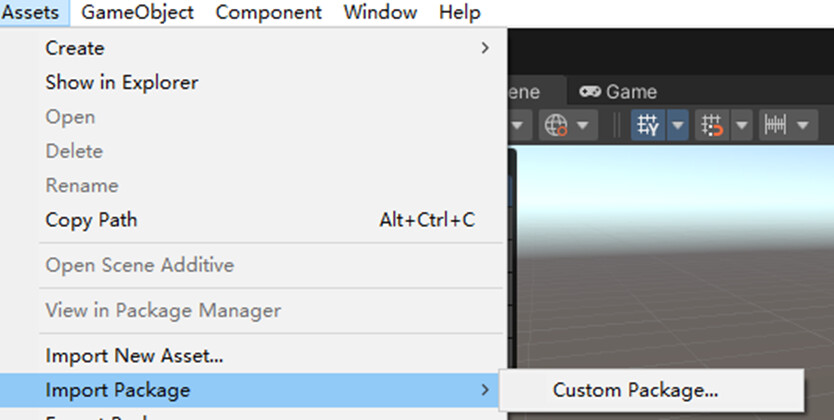
- Select all options and click import.

With these steps, you can quickly develop interaction between Unity and the Remote App. The LovenseDemo folder is an example that you can refer to. Removing it won’t affect the functionality.
Guide:
1. Search for the local LAN Remote and toy data.
Method: LovenseRemote.GetInstance().SearchAppAndToy();
Add listener: LovenseRemote.onSearchLocalAppEvent.AddListener(OnSearchLocalApp);
Remove listener: LovenseRemote.onSearchLocalAppEvent.RemoveListener(OnSearchLocalApp);
private void OnSearchLocalApp(SearchResult searchResult) {

// ...

}
Types:
-
SearchResult
-
SearchAppData
-
RemoteLovenseToy
2. List toys based on the specified IP and port:
Method: LovenseRemote.GetInstance().GetToys(ip, port, useHttp);
Add listener: LovenseRemote.onGotToysEvent.AddListener(OnGetToys);
Remove listener: LovenseRemote.onGotToysEvent.RemoveListener(OnGetToys);
private void OnGetToys(AllLovenseToysResult result) {

// ...

}
Classes:
-
class AllLovenseToysResult
-
class AllLovenseToys
-
class LovenseToy
3. Send commands
Methods:
- Single command:
LovenseRemote.GetInstance().SendFunction(string domain, int httpsPort, string toyId, LovenseCommand command, int timeSec, int stopPrevious = 1, int runningTime = 0, int pauseTime = 0, bool useHttp = false);
- Multiple commands:
LovenseRemote.GetInstance().SendFunctions(string domain, int httpsPort, string toyId, List commands, int timeSec, int stopPrevious = 1, int runningTime = 0, int pauseTime = 0, bool useHttp = false);
class LovenseCommand
class LovenseCommandType
timeSec: Total running time
stopPrevious: Whether to stop previous commands
runningTime: Running time, used in conjunction with pauseTime to control device operation and stoppage.
pauseTime: Pause time, used in conjunction with runningTime to control device operation and stoppage.
4. Send Pattern
LovenseRemote.GetInstance().SendPattern(string domain, int httpsPort, string toyId, List types, int values, int personTimeMs, int timeSec, bool useHttp = false);
values: Changes in intensity
personTimeMs: Time interval for intensity switching in milliseconds
timeSec: Total running time in seconds
5. Send preset:
LovenseRemote.GetInstance().SendPreset(string domain, int httpsPort, string toyId, string presetName, int timeSec, bool useHttp = false);
Currently available preset names:
“earthquake,” “fireworks,” “pulse,” “wave”
6. SendStopCommand
LovenseRemote.GetInstance().SendStopFunction(string domain, int httpsPort, string toyId, bool useHttp = false);
All toy control functions mentioned above use the HTTPS protocol by default. If you need to use the HTTP protocol, set useHttp = true and make sure it corresponds to the port number in the preceding parameters.